
Showing posts with label Configurations. Show all posts

How to connect a bluetooth headset to a Nokia 5800

Wednesday, April 7, 2010

Everyday whenever I travel its almost impossible not to see people listing to their music, either through their cellphones, MP3 players or even the background music from buses, and I guess I'm one of them. But sometimes having all that wire from your earphones is pretty annoying, that is why it's convenient to use a bluetooth headset to skip all that wire and enjoy your music wire free.

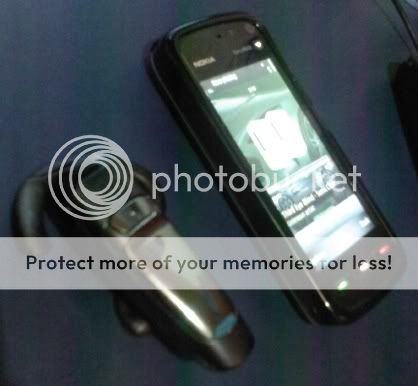
It took me a while to learn how to connect a bluetooth headset to a Nokia 5800 and here is what I did.

1. On your phone Tap Settings > Connectivity > Bluetooth
2. Turn your bluetooth "on"
3. Above the menu, tap the right arrow or the connectivity sign in between the two bluetooth logo, to view your paired devices
4. Tap "Option and select "New Paired Device".
5. Make sure your bluetooth headset is switched on and is ready to be paired or in pairing mode, Tap "More Devices"
6. Select the device as it appears on the list, if you do not see your device, just try tapping "More Devices" again
7. If the device request's for a code, enter the code provided by the manufacturer of the bluetooth headset
8. Select if you wish to connect the device automatically in the future
9. Select connect when asked, and your bluetooth headset should be connected

How to setup proxy for Nokia 5800

Tuesday, March 23, 2010

I would like to share something that took me a while to figure out with my Nokia 5800 ExpressMusic. That is setting up a proxy for connecting to a network that requires proxy settings. I would assume that your phone has its WLAN scanning turned "on" and that your unit can detect the wireless network. Configuring a proxy for your Nokia 5800 is not difficult , here is what i did.

1. On your phone go to or tap Settings > Connectivity > Destinations > Internet
2. Choose and tap the network you wish to access
3. Inside choose options and select advanced settings
4. If the network needs an IP address you can select it and add the IP address, otherewise, just leave it and enter the proxy address and port number for your network

One done, you should be able to connect to your network.

How to install NVIDIA graphics driver to Ubuntu 8.10

Thursday, July 16, 2009

After thinking of a way to maximize my U-Box i noticed that Ubunutu 8.10 seem to have a bug on NVIDIA graphics driver, whenever I try to install the driver via hardware drivers. Eventually I managed to install the my graphics driver here is what I did:

  1. Enter the NVIDIA website, www.nvidia.com, go to download drivers and select Linux, FreeBSD and Solaris Drivers under other downloads and support.
  2. Download the driver that suites your harware in my case i used Latest Legacy GPU version (173.14.xx series).
  3. download the driver NVIDIA-Linux-x86-173.14.20.pkg1.run
  4. Press ctrl + alt + f1
  5. supply the username and password if asked.
  6. enter sudo /etc/init.d/gdm stop this will stop your x-server in preparation to install the driver
  7. enter sudo sh /path of your package/NVIDIA-Linux-x86-173.14.20.pkg1.run
  8. enter sudo reboot
  9. enjoy your ubuntu 8.10!

How to Change Workgroup name in Ubuntu

Thursday, June 11, 2009

I am assuming that the version of Ubuntu being used already has Samba Installed otherwise please refer to www.ubuntu.com

1. Go to Applications > Accessories > Terminal
2. At the Terminal type the command
sudo gedit /etc/samba/smb.conf
3. Scroll Down and at the workgroup = workgroup, simply change the workgroup name and press enter
4. Restart Samba, at the terminal type
sudo /etc/init.d/samba restart

and your done!

How to add a password to a guest account in Windows XP

Tuesday, February 24, 2009

In the today's world security should always be your top priority and that includes one of the most indispensable machines in everyday life, our computers. Here is simple step to add security in your beloved personal computers who uses windows xp as their operating systems, specially if your connected to a network.

Here is a common workplace scenario, your at an office who shares not only computers but files as well through the shared folder of each computer. This is a good way to save cost and at the same time improve efficiency through networking, but of the draw backs is the security issue, since all in the network can see you and all can use your computer whenever your not around. The solution, create a guest account and add a password, this allows you to let people use the guest account if they dont have any account on a particular PC, and also it allows you to choose which people in the network can access your PC, here are the steps:

1. Go to start and choose control panel;
2. Select User accounts and turn on the Guest Account
3. Go back to the control panel and choose Administrative Tools and select Computer Management;
4. Click on the folder "Local Users and Groups"
5. Right click on the Guest and select set password
6. Add the password of your choice and let the people you want to know the password.

Mapping Windows Network Drive to Ubuntu

Wednesday, February 11, 2009

Its been a while since I figured out how to map a windows network drive to an Ubuntu Operating System. This is very useful especially if your office is using different types of Operating Systems.

Here are the steps:

1. On your Ubuntu Desktop, click on the places tab, which is usually found at the upper left portion, in between application and system and choose "connect to server" option

2. At the service type choose windows share, and simply fill up all the details:
- the server is the name of the pc where you want to connect(use the computer name)
- share is the folder name of the shared folder
- user name is the name of your pc
- domain name is your workgroup
- name to use in your connection is name that you would like to use

3. simply double click on the connect icon and the detwork drive should show up on your desktop


Copyright © My blogs